AUTODESK

All autodesk training course are here

Download AutoCAD 2016-2021 Tips & Tricks (Updated 02.10.2021) Videos

Download AutoCAD 2016-2021 Tips & Tricks (Updated 02.10.2021) Videos

Link download AutoCAD 2016-2021 Tips & Tricks videos for engineer
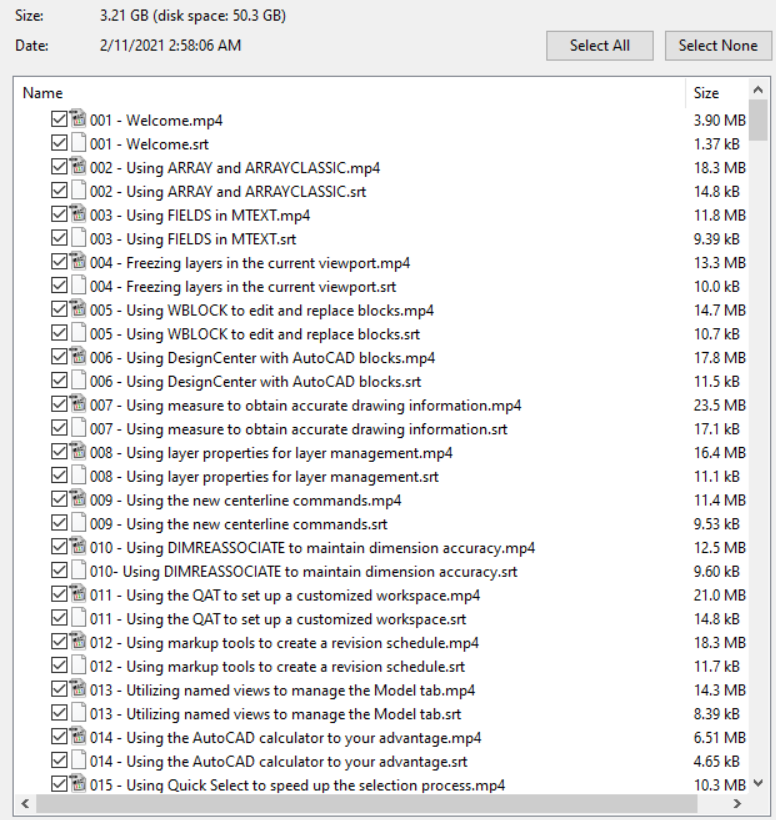
Download AutoCAD 2016-2021 Tips & Tricks dvd

Download AutoCAD 2016-2021 Tips & Tricks dvd

Duration: 22:46:00
Distribution Type: Video Tutorial
English language
Description:
Take your CAD skills up a notch. Work smarter, not harder, with AutoCAD. AutoCAD Tips & Tricks provides weekly tips, techniques, and workarounds to make designers like you more effective and more productive. Learn how to use AutoCAD’s features in exciting new ways, customize the workspace and shortcuts to save time, create more accurate drawings with the measurement and organization tools, and more. Shaun Bryant’s insights give you that competitive edge you can’t get from a regular training manual. Tune in every Wednesday for a new tip!
Weekly tips and tricks for AutoCAD. Learn how to use AutoCAD features in exciting new ways, customize your workspace and shortcuts to save time, create more accurate drawings with measurement and organization tools, and more. Sean Bryant’s insight will give you a competitive edge that you can’t get from a regular study guide. Tune in every Wednesday for a new lesson!
Content
AutoCAD: Tips & Tricks (2016)
May 2016
Welcome
Using ARRAY and ARRAYCLASSIC
Using FIELDS in MTEXT
Freezing layers in the current viewport
Using WBLOCK to edit and replace blocks
Using DesignCenter with AutoCAD blocks
June 2016
Using measure to obtain accurate drawing information
Using layer properties for layer management
Using the new centerline commands
Using DIMREASSOCIATE to maintain dimension accuracy
July 2016
Using the QAT to set up a customized workspace
Using markup tools to create a revision schedule
Utilizing named views to manage the Model tab
August 2016
Using the AutoCAD calculator to your advantage
Using Quick Select to speed up the selection process
Using layer settings for effective layer control
Setting AutoCAD point styles
September 2016
Setting multiple point objects
Using the MEASURE command
Using the DIVIDE command
Creating different revision cloud types
October 2016
Creating a region from 2D objects
Using EXTRUDE to create 3D solids
Using visual styles to develop 3D views
Using Match Properties effectively
November 2016
Using transparency in AutoCAD drawings
Using Hide and Isolate to draw effectively
Using the Group Manager to set up groups in AutoCAD
Using LTGAPSELECTION in AutoCAD
December 2016
Using SELECTIONOFFSCREEN in AutoCAD
Using PDFSHXTEXT in AutoCAD
Using the DIMBREAK command
AutoCAD: Tips & Tricks (2017)
January 2017
Using the DIMSPACE command
Creating a dimension jog line
Using DesignCenter
Working with insertion scales
February 2017
Creating a simple block palette
Creating named views
Working with batch plotting
Working with BYLAYER
March 2017
Rotating with Copy and Reference
Working with layer settings
Using the OFFSET command
Setting up a metric text style
April 2017
Setting up a metric dimension style
Setting up a metric multileader style
Using the STARTUP variable
Customizing the Quick Access Toolbar
May 2017
Adding your own AutoCAD workspace
Working with the new AutoCAD 2018.1 XREF commands
Working with the new AutoCAD 2018.1 view and viewport commands
Demonstrating the hi-res monitor support in AutoCAD 2018.1
June 2017
Working with the 3D graphics support on the AutoCAD 2018.1 update
Working with the PDFSHXTEXT command
Converting text to MTEXT with the TXT2MTXT command
Enclosing text with an object such as a circle, slot, or rectangle
July 2017
Developing and extruding a simple region in a 3D solid
Using the layer controls in the Layers panel in the ribbon
Adding blocks to a tool palette for design reuse
August 2017
Changing the INSUNITS variable when working with blocks
Using the Sheet Set Manager to develop a sheet set
Working with the interface panel and display options
Using AutoCAD tools to fix broken reference paths
September 2017
Finding and replacing reference files
Working with AutoCAD centerlines and adjusting their settings
Working with the Named Views panel
Using the PUBLISH command
October 2017
Using the ETRANSMIT command
Working with the ARRAYPATH command
Working with the FIELD command to display object data
Creating tool palettes from drawings in AutoCAD DesignCenter
November 2017
Using the Markup Set Manager in AutoCAD with Autodesk Design Review
Creating blocks with attributes for design content
Working with the Enhanced Attribute Editor to enhance block attributes
Using Quick Select to find and select objects quickly
December 2017
Using the SPELL command to check and review AutoCAD designs
Interface: Editing Polar Arrays
Interface: Editing rectangular arrays
AutoCAD: Tips & Tricks (2018)
January 2018
Content: Using DWG Compare
Content: Working with DWG Compare results
Content: Creating DWG Compare tables
Management: Working with AutoCAD options
February 2018
Content: Calculating areas
Content: Layer and panel tools
Content: Invisible block attributes
Content: Editing block attributes
March 2018
Plotting: Simple batch plotting
Interface: Automatic dimensioning
Interface: Using edge extensions
Interface: Editing path arrays
April 2018
Using the DWG Compare command
Working with your Autodesk Account
Saving your files to AutoCAD web and AutoCAD mobile
Setting up model space viewports with a 3D model
May 2018
Using named views to navigate your AutoCAD drawings
Using a DWS file to check standards in your AutoCAD drawings
Working with the Page Setup Manager in AutoCAD
Exporting your DWG files to DWF and PDF file formats
June 2018
Using the DIMREASSOCIATE command
Working with the Layer States Manager
Setting up an effective METRIC dimension style
Setting up an effective IMPERIAL dimension style
July 2018
Working with annotative dimensions in your AutoCAD drawings
Using shared views in AutoCAD
Using the Autodesk Viewer
August 2018
Using Arc Aligned
Converting text to MTEXT
Using the Modify Text drop-down menu tools
Using the Move/Copy/Rotate command in Express Tools
September 2018
Using Auto Number with AutoCAD text objects
Enclosing text inside objects with the Enclose in Object command
Aligning your layout viewports with the Align Space command
Matching up layout viewports with the Synchronize Viewports command
October 2018
Using the Merge Layout command to merge layout viewports
Using the Save to Web & Mobile command
Taking a DWG file in to AutoCAD web app
A brief introduction to using DWG files in AutoCAD web app
November 2018
Using the drawing utilities provided by AutoCAD in a DWG file
Use layer states to highlight objects in drawings
Use the LAYISO and LAYUNISO commands in your drawings
Use auto constrain and add and remove other constraints
December 2018
Work with constraints in your drawings
Work with dimensional constraints in your drawings
Convert dimensions to dimensional constraints in your drawings
AutoCAD: Tips & Tricks (2019)
January 2019
Add parameters and expressions to dimensional constraints
Show and hide constraints in your AutoCAD drawings
Develop PDF page setups using the Page Setup Manager
Use the new blocks palette in AutoCAD 2020
February 2019
Work with the WBLOCK command in AutoCAD 2020
Use DWG Compare in AutoCAD 2020
Use the QDIM command for quicker dimensioning
Fast data response with the new Quick Measure tool in AutoCAD 2020
March 2019
Work with geometric constraints in an AutoCAD drawing
Work with dimensional constraints in an AutoCAD drawing
Use the Parameters Manager to manage constraints in a drawing
Use the calculator provided in AutoCAD
April 2019
Use Quick Select for easy object selection in drawings
Generate 2D views from a 3D object in the layout tab
Scale the 2D views generated in the layout tab
Use the enhanced PURGE command in AutoCAD 2020
May 2019
Design reuse: Working with insertion options in the BLOCK command
Drafting: The advantages of using polylines
Drafting: Enjoying your donuts
Drafting: Working with regions
June 2019
Drafting: Aligning objects in 2D
Layout: Adding named views to a layout
Annotation: Generating an annotative dimension style
Web: Saving a drawing to use in the AutoCAD web app
July 2019
Design Reuse: Using PDFs in your drawings
Layout: Freezing layers in the current viewport
Interface: Working with the Interface panel
August 2019
Annotation: Spell-checking your drawings
Annotation: Reassociating your dimensions
Parametric: Using the Parameters Manager
Human interface: Using MBUTTONPAN, ZOOMWHEEL, and ZOOMFACTOR
September 2019
Human interface: Customizing the right-hand mouse button
Drafting: Running object snaps (OSNAPs)
Interface: Using the QUICKCALC command in AutoCAD
Drafting: Working with the snap overrides in AutoCAD
October 2019
Drafting: Using the REGION command to your advantage
Interface: Using the Visual Effect Settings dialog in AutoCAD
Selection: Using selection settings in AutoCAD
Selection: Working with GRIPS and grip editing in AutoCAD
November 2019
Drafting: Working with OFFSET and its command options
Layers: Using the LAYTRANS command in AutoCAD
Layers: Using the LAYWALK command in AutoCAD
EXPRESS TOOLS – Using The SUPERHATCH command from the Express Tools tab
December 2019
INTERFACE – Using the scale list In viewports and annotation
BLOCKS – Using DesignCenter and palettes for blocks in AutoCAD
DRAFTING TECHNIQUES – Working with orthographic projection in AutoCAD
AutoCAD: Tips & Tricks (2020)
January 2020
DRAFTING TECHNIQUES – Using first angle projection in AutoCAD
LAYOUT – Using third angle projection in AutoCAD
LAYOUT – Working with the Create View tools in the Layout tab
LAYOUT – Working with the Modify View tools in the Layout tab
February 2020
LAYOUT – Updating views created in the layout with the Update panel tools
LAYOUT – Working with the Styles and Standards panel in the layout
LAYOUT – Working with different types of viewports in your layouts
LAYOUT – Adding named views to your layouts in your drawings
March 2020
Blocks palette: Working with blocks in a current drawing
Blocks palette: Working with blocks from recent drawings
Blocks palette: Working with blocks from other drawings
Blocks: Using the Block Attribute Manager (BATTMAN); no cape needed!
April 2020
Annotation: Working with fields to add useful data to AutoCAD tables
Annotation: Using the DIMENSION command for quick annotation
Modify: Streamlined Trim and Extend (AutoCAD 2021)
Annotation: REVCLOUD enhancements (AutoCAD 2021)
May 2020
Modify: Break objects at a single point (AutoCAD 2021)
Measure geometry: Working with the new Quick Measure option (only AutoCAD 2021)
Management: Managing DWG file history using DWG History support (subscription only)
System: The new RTREGENAUTO system variable (AutoCAD 2021)
June 2020
Blocks: Syncing AutoCAD blocks in the Blocks palette (AutoCAD 2021), part 1
Blocks: Syncing AutoCAD blocks in the Blocks Recent folder location (AutoCAD 2021), part 2
Blocks: The new Blocks Libraries function (AutoCAD 2021)
External references: XREF Compare function (AutoCAD 2021)
Collaboration: DWG Compare, working with snapshots (AutoCAD 2020)
Management: Working and saving back with older DWG file formats (AutoCAD 2020)
July 2020
Annotation: Working with the DIMASSOC system variable allows for different types of dimension annotation
Annotation: Working with associative dimensions in your AutoCAD drawings
Annotation: Working with annotative dimensions in your AutoCAD drawings
Annotation: Working with some of the other useful tools in the Dimensions panel
Annotation: Working with subfamilies in your dimension styles in AutoCAD
August 2020
Layers: Using layer states to enhance your AutoCAD drawings
Annotation: Using viewport scales to set your annotative scaling in your drawing
Annotation: Working with annotative object scales to add annotative scales to dimension objects in your drawings
September 2020
Annotation: Using the DIMBREAK and DIMSPACE commands in your AutoCAD drawings
Annotation: Working with the MLEADER command to develop and use annotative multileaders in your drawings
Properties: Using the LTSCALE value in your object properties to enhance object display in your layout tabs
Management: Using the DWGCONVERT command to change the DWG file format of your drawings
October 2020
Output: Using the PUBLISH command to print and plot multiple drawings and saving the settings for future output
Output: Setting up a simple titleblock with PDF page setup and viewports
Annotation: Using fields to occupy table data cells
Customization: Working with the AutoCAD cursor and UCS
Web App: Opening your web app DWG file in your AutoCAD desktop
November 2020
Catalogs: AutoCAD Electrical, using the Catalog Browser
Interface: Using sticky panels and saving workspaces
3D Design: Generating a section plane and creating section views
3D Design: Applying materials to surfaces using the Materials Browser to enhance your renders
December 2020
3D Design: Using visual styles to enhance your 3D model views
3D Design: Setting up a camera view and adding it to a layout titleblock
3D Design: Generating 3D solids using regions, Presspull, and Extrude
3D Design: Using Boolean functions In 3D AutoCAD
AutoCAD: Tips & Tricks (2021)
January 2021
Interface: Using your file tabs in AutoCAD
Project: Developing a simple gasket plate with polylines and circles in 2D
Project: Converting a 2D gasket plate to AutoCAD regions
Project: Using 3D Boolean functions to tidy up AutoCAD regions
February 2021
Project: Using EXTRUDE and PRESSPULL in 3D to convert a 2D region to a 3D solid
Project: Developing a title block with four viewports
For download this video training course AutoCAD 2016-2021 Tips & Tricks videos), please click to download sysmbol and complete your checkout to support a little bit to help my website is maintained. The download link will be appeared automatically after you complete your payment.

CLICKDOWN.ORG Download CAD CAM CNC software e1600323925412
After you receive *.zip file, open it and open *.txt instruction’s file to see video for download instruction if you don’t know how to download.
All make sure you’ll get best services and we’ll help you any time when you get any problems. Don’t mind to contact admin: [email protected].
p/s: You also can request somethings which don’t have inside this website, we’ll try our best to them it for you.
Thank you.

Download InfraWorks 2021 Essential Training course for desginer

Download InfraWorks 2021 Essential Training course for desginer

Link download InfraWorks 2021 tutorials video for engineer

InfraWorks 2021 Essential Training for desginer

InfraWorks 2021 Essential Training for desginer

Download InfraWorks 2021 Essential Training course

Download InfraWorks 2021 Essential Training course

Length: 03:45:00
Handout Type: Video Tutorial
English language
Description
: InfraWorks offers civil engineering, GIS, and site visualization features in one complete program, making it possible to create realistic 3D cities from the ground up. This course helps you get up to speed with all the essential features of InfraWorks as you follow along creating a full-featured residential community, complete with drainage networks, roads, bridges, and building models. Learn how to import model and terrain data from other programs and add style and detail — such as trees, water, utilities, sky, and roads — to your world. Instructor Gordon Luckett also shows you how to export and share your design with colleagues and clients around the globe.
CONTENTS
00 – Introduction
Exploring 3D in Autodesk InfraWorks
01 – InfraWorks Intro
Dashboard
Model Builder
Application options
Utility Bar
02 – Building a Model
GIS data
Surface layers
Model Explorer
Stack
ArcGIS connector
Import aerial photos
Bookmarks
Proposals
03 – Theming Data
Creating a terrain theme
Creating a feature theme
04 – Site Planning
Residential subdivisions: Lots
Residential subdivisions: Homes
Commercial parking
05 – Site Grading and Creation
Creating land areas
Creating coverage areas
Creating buildings
Creating water features
Creating walls and barriers
Trees and landscaping
Creating city furniture
06 – Road Design
Planning roads
Creating component roads
Right of way
Profile and section views
Roadside grading
Sight distance
Profile optimization
Corridor optimization
Material quantities
Earthwork quantities
Intersection design
07 – Bridge Design
Creating a bridge
Working with girder types
Working with piers
Line girder analysis and quantity reports
Create tunnels
08 – Railways
Create railways
09 – Utilities
Watersheds
Creating pipelines and connectors
10 – Visualization
View settings
Sun and sky setting
Application options: 3D graphics
11 – Collaboration
Watermarks
Create and share storyboard
Create snapshot
Create share views
Export to FGDB
Export to ArcGIS Online
BIM 360 Sync
12 – Conclusion
Next steps
Exercise Files
For download this InfraWorks 2021 Essential Training videos, please click to download sysmbol and complete your checkout to support a little bit to help my website is maintained. The download link will be appeared automatically after you complete your payment.
CLICKDOWN.ORG Download CAD CAM CNC software e1600323925412
After you receive *.zip file, open it and open *.txt instruction’s file to see video for download instruction if you don’t know how to download.
All make sure you’ll get best services and we’ll help you any time when you get any problems. Don’t mind to contact admin: [email protected].
p/s: You also can request somethings which don’t have inside this website, we’ll try our best to them it for you.
Thank you.

Download AutoCAD 2021 Essential Training videos for engineer

Download AutoCAD 2021 Essential Training videos for engineer

Link download AutoCAD 2021 training course for designer

AutoCAD 2021 Essential Training for desginer

AutoCAD 2021 Essential Training for desginer

Download AutoCAD 2021 Essential Training course

Download AutoCAD 2021 Essential Training course

Length: 03:58:00
Handout Type: Video Tutorial
English language
Description
: AutoCAD 2021 is a powerful designing and drafting software used to create precise 2D and 3D designs. In this course, explore learning beyond the basics covered in Learning AutoCAD. Shaun Bryant covers using the ribbon, choosing workspaces, and using the ViewCube. Shaun also demonstrates managing units and options, drawing and modifying objects, working with dimensioning techniques, and using attributes, tables, and external references. The course offers training that helps prepare you to use AutoCAD competently in any industry including architecture, engineering, construction, manufacturing, and product design.
CONTENTS
00 – Introduction
The essentials of AutoCAD
What you should know before watching this course
Using the exercise files
The new AutoCAD 2021 interface
01 – Using Units and Options
Setting drawing units
Converting drawing units
Editing and managing options
Working with templates: DWT
02 – Drawing More Objects
Rectangles and polygons
Points and donuts
Ellipses
Isometric views with elliptical arcs
03 – Modifying Objects
Selecting objects
Using Move and Copy
Using Rotate and Scale
Creating and using arrays
Using Offset and Mirror
Using Stretch and Lengthen
Using Trim and Extend
Using Break and Join
Using grips and grip editing
Using boundaries
Using Fillet and Chamfer
Using Divide and Measure
Editing polylines and splines
04 – Hatching and Gradients
Using the Hatch command
Using the Gradient command
Editing hatches and gradients
05 – More Text Techniques
Aligning text
Framing text in a title block
06 – More Dimensioning Techniques
Editing dimensions and dimension overrides
Breaking and spacing dimensions
Continue and baseline dimensions
Automatic dimensioning
Using multileaders
07 – Reusing Content
Using groups
Creating and inserting a block
Using the Explode command
Redefining a block definition
Using WBLOCK
Creating a simple dynamic block
08 – Attributes and Tables
Creating a simple block with attributes
Enhanced Attribute Editor
Working with table styles
Designing a table
Adding fields to a table
09 – External References (XREFs)
Working with XREFs
Attaching and overlaying XREFs
Altering and clipping XREFs
Editing XREFs
Editing XREFs in place
99 – Conclusion
Next steps
Exercise Files
For download this AutoCAD 2021 Essential Training videos, please click to download sysmbol and complete your checkout to support a little bit to help my website is maintained. The download link will be appeared automatically after you complete your payment.
CLICKDOWN.ORG Download CAD CAM CNC software e1600323925412
After you receive *.zip file, open it and open *.txt instruction’s file to see video for download instruction if you don’t know how to download.
All make sure you’ll get best services and we’ll help you any time when you get any problems. Don’t mind to contact admin: [email protected].
p/s: You also can request somethings which don’t have inside this website, we’ll try our best to them it for you.
Thank you.
Download AutoCAD Map 3D 2021 Essential Training videos for designer

Download AutoCAD Map 3D 2021 Essential Training videos for designer

Link download AutoCAD Map 3D 2021 training course for engineer

AutoCAD Map 3D 2021 Essential Training

AutoCAD Map 3D 2021 Essential Training

Download AutoCAD Map 3D 2021 Essential Training for desginer

Download AutoCAD Map 3D 2021 Essential Training for desginer

Duration: 02:43:00
Handout Type: Video Tutorial
English language
Description
: AutoCAD Map 3D enriches your map data, making it more visual and intelligent. With AutoCAD 2021, the Map 3D toolset ships free, bringing an intelligent geographic information system (GIS) to every AutoCAD drawing. Join GIS consultant and trainer Gordon Luckett in this course, where he shows how to use this powerful program to edit data within existing AutoCAD drawings and connect to outside databases for new sources of information. He also shows how to connect to, style, and analyze GIS data, and publish your data and final maps to a web-based map book. All of this and more is possible with AutoCAD Map 3D. Start watching, and learn how to bring the power of geodata to your DWGs.
CONTENTS
00 – Introduction
Unlock the power of 3D mapping in AutoCAD
What you should know before watching this course
01 – Adding Your Own Data Attributes
Creating object data definitions
Attaching object data to AutoCAD objects
Modifying object data
02 – Connecting Databases
Connect to a database
Link a database to AutoCAD objects
03 – Using Project Drawings
Attaching source drawings
Performing location queries
Performing property queries
Performing object data queries
Performing database queries
04 – Adding Images
Adding raster images
Modifying raster images
05 – Styling AutoCAD Objects
Adding drawing data in Display Manager
Styling drawing data in Display Manager
06 – Import and Exporting GIS Data
Importing GIS data
Exporting GIS data
07 – Connecting to GIS Data
Connecting to file-based vector data
Connecting to raster data
Connecting to raster surfaces
Connecting to ODBC points
Using the Autodesk connector for ArcGIS
Adding images using the WMTS connector
08 – Stylizing GIS Data
Stylizing vector layers
Thematic vector layers
Adding scale dependance
Filtering vector layers
Stylizing raster layers
09 – Editing GIS Data
Add existing AutoCAD objects
Load existing AutoCAD objects
Draw new features from scratch
Bulk copy between GIS data sources
10 – Analyzing GIS Data
GIS joins
Buffer analysis
Overlay analysis
Calculated properties
11 – Merging and Splitting GIS Data
Splitting GIS data
Merging GIS data
12 – Using Coordinate Systems
Assigning coordinate systems
Reprojecting AutoCAD data
Reprojecting GIS data
13 – Publishing Map Books
Preparing a map book
Create and publish a map book
99 – Conclusion
Next steps
Exercise Files
For download this AutoCAD Map 3D 2021 Essential Training videos, please click to download sysmbol and complete your checkout to support a little bit to help my website is maintained. The download link will be appeared automatically after you complete your payment.
CLICKDOWN.ORG Download CAD CAM CNC software e1600323925412
After you receive *.zip file, open it and open *.txt instruction’s file to see video for download instruction if you don’t know how to download.
All make sure you’ll get best services and we’ll help you any time when you get any problems. Don’t mind to contact admin: [email protected].
p/s: You also can request somethings which don’t have inside this website, we’ll try our best to them it for you.
Thank you.

Download Autodesk Revit 2021 Essential Training videos for Architecture

Download Autodesk Revit 2021 Essential Training videos for Architecture

Link Revit 2021: Essential Training for Architecture (Imperial and Metric)

Autodesk Revit 2021 Essential Training for Architecture

Autodesk Revit 2021 Essential Training for Architecture

Download Autodesk Revit 2021 Essential Training for Architecture

Download Autodesk Revit 2021 Essential Training for Architecture

Duration: 12:52:00
Handout Type: Video Tutorial
English language
Description
: Get up and running with Revit Architecture 2021 for architectural design. This course is designed for students who have no prior Revit experience and want to learn the basics. Instructor Paul F. Aubin begins by helping you get comfortable with the Revit environment. He demonstrates how to set up a project and add the grids, levels, and dimensions that will anchor your design. Then, Paul helps you dive into modeling: adding walls, doors, and windows; using joins and constraints; creating groups; linking to DWG files; and modeling floors, roofs, and ceilings. He also shows advanced techniques for modeling stairs and complex walls, adding rooms, and creating schedules. Finally, discover how to annotate your drawings so all the components are clearly understood, as well as output sheets to PDF and AutoCAD.
CONTENTS
00 – Introduction
Revit 2021 for architecture
Imperial or metric and the exercise files
01 – Core Concepts
Introducing building information modeling (BIM)
Working on one model with many views
Understanding the Revit element hierarchy
Editing elements within the Revit hierarchy
02 – Interface Basics
The Recent Files screen
Getting familiar with the user interface
View navigation
Selection
Accessing a multi-user project using worksharing
03 – Starting a Project
Creating a new project from a template
Creating and configuring a new project
Adding levels
Adding grids
Refining a layout with temporary dimensions
Adding columns
04 – Modeling Basics
Adding walls
Wall properties and types
Using snaps
Locating walls
Using the modify tools
Adding doors and windows
Adding plumbing fixtures and other components
Wall joins
Using constraints
05 – Links, Imports, and Groups
Linking AutoCAD DWG files
Creating topography from a DWG link
CAD inserts
Import tips
Creating groups
Mirroring groups to create a layout
Creating Revit links
Rotating and aligning a Revit link
Establishing shared coordinates
Managing links
Importing a PDF
Understanding file formats
06 – Sketch-Based Modeling Components
Creating floors
Creating footprint roofs
Attaching walls to roofs
Creating extrusion roofs
Using the shape editing tools to create a flat roof
Working with slope arrows
Creating ceilings
Adding openings
07 – Stairs
Adding stairs
Editing stairs
Adding railings
Adding extensions to railings
08 – Complex Walls
Understanding wall families
Creating a custom basic wall type
Stacked walls
Adding curtain walls
Adding curtain grids, mullions, and panels
Creating wall sweeps and reveals
Model lines
Adding slanted walls
Modifying a slanted wall and adjusting sweeps and inserts
09 – Visibility and Graphic Controls
Using object styles
Working with visibility and graphic overrides
Recommendations for annotation visibility
Using view templates
Hiding and isolating objects in a model
View extents and crop regions
View Range
Displaying objects above and below in plan views
Using the Linework tool and Depth Cueing
Using cutaway views
Using graphical display options
10 – Rooms
Adding rooms
Controlling room numbering
Room bounding elements
11 – Schedules and Tags
Tags
Adding schedule views
Modifying schedule views
Creating a key schedule
12 – Annotation and Details
Adding text
Text formatting
Adding dimensions
Adding symbols
Adding legend views
Creating a detail callout
Adding detail components
Using arrays to parametrically duplicate objects
Adding filled and masking regions
13 – The Basics of the Family Editor
Families
Creating a new family from a template
Using reference planes, parameters, and constraints
Adding solid geometry
Cutting holes using void geometry
Adding blends
Completing the family
14 – Sheets, Plotting, and Publishing
Understanding sheet and view references
Adding a new sheet
Create a sheet index
Working with placeholder sheets
Aligning views with a guide grid
Exporting to AutoCAD
Plotting and creating a PDF
99 – Conclusion
Next steps
Exercise Files
For download this Autodesk Revit 2021 Essential Training videos, please click to download sysmbol and complete your checkout to support a little bit to help my website is maintained. The download link will be appeared automatically after you complete your payment.
CLICKDOWN.ORG Download CAD CAM CNC software e1600323925412
After you receive *.zip file, open it and open *.txt instruction’s file to see video for download instruction if you don’t know how to download.
All make sure you’ll get best services and we’ll help you any time when you get any problems. Don’t mind to contact admin: [email protected].
p/s: You also can request somethings which don’t have inside this website, we’ll try our best to them it for you.
Thank you.

error: Content is protected !!
Scroll to Top