AUTODESK

All autodesk training course are here

Download 3ds Max 2021 Essential Training video course for engineer

Download 3ds Max 2021 Essential Training video course for engineer

Link download 3ds Max 2021 tutorials videos for desginer

Learning 3ds Max 2021 by Essential Training

Learning 3ds Max 2021 by Essential Training

Download 3ds Max 2021 Essential Training course

Download 3ds Max 2021 Essential Training course

Duration: 10:41
Distribution Type: Video Clips
English language
Subtitles: English (srt)

Description: 3ds Max is best known for its modeling and rendering tools. These strengths come into play in architecture, manufacturing, game development, industrial design, and motion graphics. There are dozens of features and techniques to master, from modeling and texturing to lighting and rendering. This course covers 3ds Max from the ground up, providing an overview of the entire package as well as essential skills that 3D artists need to create professional models and animations.
Learn how to get around the 3ds Max interface and customize it to suit your preferences. Discover how to model different objects using splines, polygons, and subdivision surfaces. Then, learn to construct hierarchies, add cameras and lights, and animate with keyframes. Instructor Aaron F. Ross also takes an in-depth look at materials and texture mapping, as well as options for rendering engines such as Arnold and Quicksilver.
For download this 3ds Max 2021 Essential Training video, please click to download sysmbol and complete your checkout to support a little bit to help my website is maintained. The download link will be appeared automatically after you complete your payment.

CLICKDOWN.ORG Download CAD CAM CNC software e1600323925412
After you receive *.zip file, open it and open *.txt instruction’s file to see video for download instruction if you don’t know how to download.
All make sure you’ll get best services and we’ll help you any time when you get any problems. Don’t mind to contact admin: [email protected].
p/s: You also can request somethings which don’t have inside this website, we’ll try our best to them it for you.
Thank you.

Download AutoCAD Electrical Essential Training for designer

Download AutoCAD Electrical Essential Training for designer

Link download AutoCAD Electrical video training course for engineer

Learning AutoCAD Electrical 2020 with professor

Learning AutoCAD Electrical 2020 with professor

Download AutoCAD Electrical Essential Training course

Download AutoCAD Electrical Essential Training course

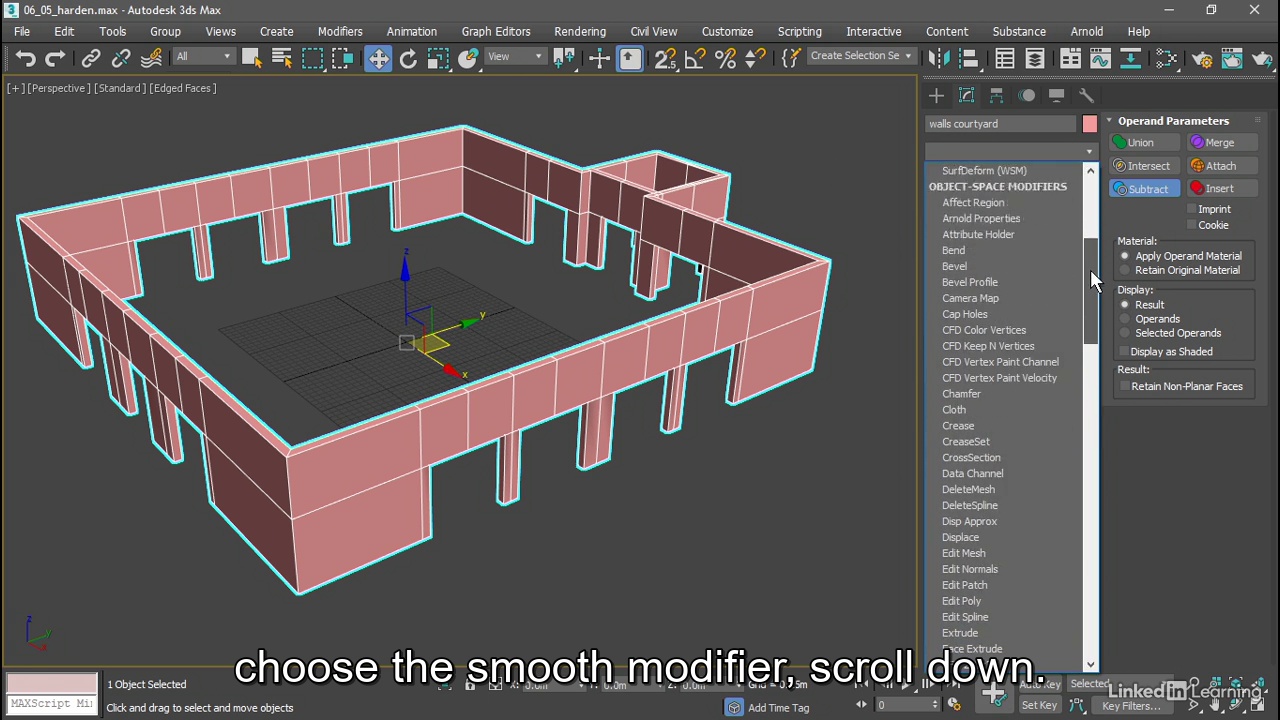
Descriptions: Learn about using the powerful AutoCAD Electrical toolset, which offers automated drafting tools for designing wiring, circuiting, PLC modules, panels, and more. Explore the interface and the process of creating precise, measured electrical drawings and schematics. Instructor Shaun Bryant shows how to design wiring diagrams, insert components and terminals, use PLC symbols in ladder diagrams, perform point-to-point wiring, create custom symbols, add annotations like title blocks to drawings, and run reports. Shaun also shows how to adjust settings, customize the built-in templates, and use the drawing update tools to reuse, copy, export, and verify drawings.
Contents:
00 – Introduction
Working with AutoCAD Electrical
What you should know before watching this course
Using the exercise files
The new AutoCAD 2021 interface
Prerequisite courses in the library
01 – Explore the AutoCAD Electrical User Interface
Explore the AutoCAD Electrical user interface
Use the AutoCAD Electrical ribbon
Right-click marking menu
The Project Manager
Drafting Settings dialog box
Quick Access Toolbar (QAT)
02 – Manage Files and Projects
Open projects
Open drawings
Use AutoCAD Electrical template files (DWT) to add new drawings
Manage project paths and file paths in AutoCAD Electrical
03 – Navigate in the Drawing
Use zoom and pan
Use the mouse
Navigate project drawings
04 – Work in a Project
Access project files and drawings
Create a new electrical drawing in a project
Add a regular drawing to a project file
Manage drawings in projects with the project drawing list
05 – Schematics: Single Wires and Components
Use ladders in a drawing
Insert and edit wires
Add rungs to ladders
Number wires
Source and destination signal arrows
Insert components
Parent and child components
06 – Schematics: Multiwiring and Circuits
Use dashed link lines
3-phase ladders
Multiple Wire Bus dialog
Use 3-phase components
Number 3-phase wiring
Use cable markers
WBLOCK circuits
Work with saved circuits
Add saved circuits to the icon menu
Copy and move a circuit
Use the Circuit Clipboard
Use the Circuit Builder
07 – AutoCAD Electrical Editing Commands
Edit with the marking menu
Use the Project Task List
Use the SCOOT command
Move components
Copy components
Align components
Delete components
Use the Surfer command (AESURF)
Use the Copy Catalog Assignment
Copy installation and location code values
Use the attribute editing commands
08 – Work with Panel Drawings
Use Insert Footprint (Icon Menu)
Use Insert Footprint (Schematic Menu)
Insert Component (Manufacturer Menu)
Edit panel footprints
Assign item numbers and add balloons to panels
09 – Work with Terminals
Insert terminal symbols into drawings
Use multiple-level terminals
Insert jumper terminals
Create a jumper chart
Use the DIN Rail command
10 – Use PLC Symbols
Insert a PLC (parametric)
Insert a PLC (full units)
Insert PLC I/O points
Tag PLC symbols
Use the Spreadsheet to PLC I/O function
11 – Use Point-to-Point Wiring
Insert and edit connectors
Use and insert splices
Use and insert multiple wires
Bend wires
12 – Create Custom Symbols
The Symbol Builder
Insert standard attributes
Insert wire connection attributes
Save the new symbol
Insert the new symbol
Add new symbols to the Icon Menu
13 – AutoCAD Electrical Titleblocks
Update titleblocks
Set up AutoCAD Electrical titleblocks
Working with revision clouds
14 – Report in AutoCAD Electrical
Save to external files
Put reports on drawings
Configure report templates
Run automatic reports
Use the Electrical Audit command
15 – Settings and Templates
Set project properties
Set drawing properties
Set the panel drawing configuration
Set up a template file
16 – Use Drawing Update Tools
Update and retag projects
Use project-wide utilities
Plot projects
Export projects to spreadsheets
Update a project from a spreadsheet
Copy a project
Swap and update blocks
Mark and verify drawings
17 – New Features
Using the BREAKATPOINT command
Using the TRIM and EXTEND commands
99 – Conclusion
Next steps
Exercise Files
For download this AutoCAD Electrical Essential Training videos, please click to download sysmbol and complete your checkout to support a little bit to help my website is maintained. The download link will be appeared automatically after you complete your payment.
CLICKDOWN.ORG Download CAD CAM CNC software e1600323925412
After you receive *.zip file, open it and open *.txt instruction’s file to see video for download instruction if you don’t know how to download.
All make sure you’ll get best services and we’ll help you any time when you get any problems. Don’t mind to contact admin: [email protected].
p/s: You also can request somethings which don’t have inside this website, we’ll try our best to them it for you.
Thank you.
Download AutoCAD 2021 Beginners Guide 8 Edition for engineer

Download AutoCAD 2021 Beginners Guide 8 Edition for engineer

Link download AutoCAD 2021 tutorials for designer

AutoCAD 2021 Beginners Guide 8 Edition for engineer

AutoCAD 2021 Beginners Guide 8 Edition for engineer

File format: pdf, 404 pages, english
Descriptions: If you want to learn AutoCAD to create technical drawings, this is the book for you. You will learn to use commands and techniques by following the step-by-step examples given in this book. This book covers everything from creating two-dimensional (2D) and three dimensional (3D) drawings to printing and publishing. The topics covered in this book are illustrated with the help of real world examples such as gaskets, flanges, brackets, schematic line diagrams, and more. Also, this book is well organized and can be used for a course or self-study.
Get familiarized with user interface and navigation tools.
Create print ready drawings.
Create smart drawings using parametric tools.
Have a good command over AutoCAD tools and techniques.
Explore the easiest and quickest ways to perform operations.
Know how to reuse existing data.
Create 3D models and generate 2D drawings.
Table of Contents
Title Page
Table of Contents
Preface
Chapter 1: Introduction to AutoCAD 2021 1
Introduction ………………………………………………. 1
System requirements ………………………………. 1
Starting AutoCAD 2021 ……………………………………. 1
AutoCAD user interface…………………………………… 2
Changing the Color Scheme in AutoCAD ……… 3
Workspaces in AutoCAD ………………………….. 5
Drafting & Annotation Workspace ………………. 5
3D Basics and 3D Modeling Workspaces ……. 6
Application Menu ………………………………………………. 6
Quick Access Toolbar ……………………………….. 6
File tabs …………………………………………. 7
Drawing Window …………………………….. 7
ViewCube …………………………………………… 7
Navigation Bar …………………………………………. 7
Command line ……………………………….. 8
Status Bar …………………………………… 8
Menu Bar …………………………………… 13
Changing the display of Ribbon……………………. 14
Dialog Boxes and Palettes ………………………….. 14
Tool Palettes ……………………………………. 15
Shortcut Menus………………………………. 16
Selection Windows …………………………………. 17
Starting a new drawing ………………………… 18
Command list …………………………………………………………………. 20
Questions …………………………………………………………. 38
Chapter 2: Drawing Basics in AutoCAD 39
Drawing Basic…………………………………………………………….. 39
Drawing lines …………………….. 39
Erasing, Undoing and Redoing ………………………… 44
Drawing Circles ………………………………………… 46
Drawing Arcs …………………………………………….. 50
Drawing Splines …………………………………….. 53
Drawing Ellipses ………………………………………. 54
Drawing Polylines ……………………………………………. 57
Drawing Rectangles ……………………… 58
Drawing Polygons …………………………… 62
Questions ……………………………….. 64
Exercises ………………………………………….. 64
Exercise 1 …………………………………………….. 64
Exercise 2 ……………………………………. 65
Exercise 3 ………………………………… 65
Exercise 4 ……………………………….. 66
Exercise 5 …………………………………. 66
Chapter 3: Drawing Aids in AutoCAD 67
Drawing Aids ………………………………. 67
Setting Grid and Snap …………………. 67
Setting the Limits of a drawing ……….69
Setting the Lineweight …………………. 70
Using the Ortho mode and Polar Tracking…….. 71
Using Layers ………………………… 72
Using Object Snaps………………………… 75
Running Object Snaps………………. 79
Cycling through Object Snaps …. 79
Using Object Snap Tracking………. 80
Using Zoom tools ……………………… 82
Panning Drawings…………………….. 87
Questions …………………. 88
Exercises …………………. 88
Exercise 1 …………. 88
Exercise 2 ……….. 88
Chapter 4: Editing Tools in AutoCAD 89
Editing Tools………….. 89
The Move tool …………………… 89
The Copy tool……………. 90
The Rotate tool …………………. 91
The Scale tool ……………………… 92
The Trim tool…………………………. 93
The Extend tool ………………………… 94
The Fillet tool ……………………… 95
The Chamfer tool ……………………… 97
The Mirror tool …………………….. 97
The Explode tool ……………………. 99
The Stretch tool ………………………… 99
The Offset tool………………………….. 101
The Rectangular Array tool……..104
The Path Array tool ……………. 105
The Polar Array tool ……………. 107
Editing Using Grips …………… 111
Modifying Rectangular Arrays………. 116
Modifying Polar Arrays………….. 122
Questions ………………….. 126
Exercises …………………………… 126
Exercise 1 …………………….. 126
Exercise 2 …………………….. 126
Exercise 3 …………………….. 127
Exercise 4 …………………….. 127
Exercise 5 …………………….. 128
Chapter 5: Multi View Drawings in AutoCAD 129
Multi View Drawings …………………. 129
Creating Orthographic Views…..129
Creating Auxiliary Views ….139
Creating Named views ………. 145
Questions ………………………….. 147
Exercises …………………………… 147
Exercise 1 …………………….. 147
Exercise 2 …………………….. 147
Exercise 3 …………………….. 148
Exercise 4 …………………….. 148
Chapter 6: Dimensions and Annotations in AutoCAD 149
Dimensioning …………………… 149
Creating Dimensions …… 149
Creating a Dimension Style ………………….. 159
Adding Leaders …………… 165
Adding Dimensional Tolerances ….. 170
Geometric Dimensioning and Tolerancing …….173
Editing Dimensions by Stretching ………179
Modifying Dimensions by Trimming and Extending ……179
Using the DIMEDIT command….181
Using the Update tool ….. 182
Using the Oblique tool …. 183
Editing Dimensions using Grips 187
Modifying Dimensions using the Properties palette .190
Matching Properties of Dimensions or Objects … 191
Questions …………………………. 193
Exercises …………………………… 193
Exercise 1 …………………….. 193
Exercise 2 …………………….. 193
Exercise 3 …………………….. 194
Chapter 7: Parametric Tools in AutoCAD 195
Parametric Tools ………………. 195
Geometric Constraints …. 195
Dimensional Constraints 206
Creating equations using the Parameters Manager…………..209
Creating Inferred Constraints . 211
Questions ………………………….. 214
Exercises ……………………………. 214
Exercise 1 …………………….. 214
Exercise 2 …………………….. 214
Chapter 8: Section Views in AutoCAD 215
Section Views………………………….. 215
The Hatch tool…………………… 215
Setting the Properties of Hatch lines………………224
Island Detection tools …… 228
Text in Hatching ………….. 231
Editing Hatch lines ………. 232
Questions …………………………. 234
Exercises …………………………… 234
Exercise 1 …………………….. 234
Exercise 2 …………………….. 235
Chapter 9: Blocks, Attributes and Xrefs in AutoCAD 237
Introduction ……………………… 237
Creating Blocks ……………. 237
Inserting Blocks …………… 239
Creating Annotative Blocks 242
Exploding Blocks …………. 243
Using the Purge tool ……. 244
Using the Divide tool ……. 245
Renaming Blocks …………. 246
Inserting Blocks in a Table 247
Using the DesignCenter…………….. 249
Using Tool Palettes…………………. 251
Inserting Multiple Blocks …….255
Editing Blocks ……………… 256
Using the Write Block tool 257
Defining Attributes ……… 259
Inserting Attributed Blocks ….. 261
Working with External references . 263
Fading an Xref……………………. 266
Clipping External References … 266
Editing the External References..268
Adding Balloons …………… 268
Create Part List ……………. 270
Questions …………………………. 274
…………………………….. 274
Exercise 1 …………………….. 274
Chapter 10: Layouts & Annotative Objects in AutoCAD 275
Drawing Layouts ………………… 275
Working with Layouts …. 275
Creating Viewports in the Paper space …278
Changing the Layer Properties in Viewports …. 283
Creating the Title Block on the Layout …. 284
Working with Annotative Dimensions … 285
Scaling Hatch relative to Viewports … 289
Working with Annotative Text…. 290
Questions ………………………….. 292
Exercise …………………………….. 292
Exercise 1 ………………………… 292
Chapter 11: Templates and Plotting in AutoCAD 293
Plotting Drawings …………….. 293
Configuring Plotters……………….. 293
Creating Plot Style Tables …..296
Using Plot Styles ………….. 299
Creating Templates ……… 303
Plotting/Printing the drawing ……….304
Questions …………………………. 307
Exercise ……………………………… 307
Exercise 1 …………………….. 307
Chapter 12: 3D Modeling Basics in AutoCAD 309
Introduction ……………………… 309
3D Modeling Workspaces in AutoCAD .309
The 3D Modeling Workspace . 310
The Box tool………………………. 312
Creating the User Coordinate System .. 313
Creating a Wedge ………… 314
Creating a Cylinder ……… 316
Using Dynamic User Coordinate System ………… 322
Model Space Viewports For 3D Modeling ….. 323
Creating Other Primitive Shapes …… 324
Creating Cones ……………. 324
Creating a Sphere ………… 325
Creating a Pyramid ……… 326
Creating a Torus ………….. 326
Creating a Wedge ………… 327
Using the Polysolid tool . 328
Using the Extrude tool …. 328
Using the Loft tool ……….. 331
Using the Revolve tool……… 334
Using the Sweep tool …….. 336
Using the Presspull tool………. 338
Performing Boolean Operations … 344
Using the Helix tool ……….. 349
Questions ………………………….. 351
Exercises …………………………….. 351
Exercise 1 …………………….. 351
Exercise 2 …………………….. 351
Exercise 3 …………………….. 352
Exercise 4 …………………….. 352
Mirror tool ………………………………………………………………………………………….. 360
Using the Fillet Edge tool 363
Using the Taper Faces tool ..366
Using the Offset Faces tool .. 367
Using the 3D Rotate tool…….. 369
Using the 3D Polyline tool …. 370
Creating a 3D Polar Array ..371
Using the Shell tool ……….. 372
Using the Chamfer Edge tool….. 373
Using the Section Plane tool .. 374
Using the Live Section tool …. 375
Creating Drawing Views …… 376
Setting the Drafting Standard 376
Creating a Base View ……. 377
Creating a Projected View . 378
Creating Section Views ……. 378
Creating the Section View Style … 378
Creating a Full Section View… 380
Creating a Detailed View .. 380
Questions …………………………. 382
Exercises …………………………… 382
Exercises 1 …………………… 382
Exercises 2 …………………… 383
Exercises 3 …………………… 384
Exercises 4 …………………… 384
Exercises 5 …………………… 385
Index
For download this AutoCAD 2021 ebook, please click to download sysmbol and complete your checkout to support a little bit to help my website is maintained. The download link will be appeared automatically after you complete your payment.
CLICKDOWN.ORG Download CAD CAM CNC software e1600323925412
After you receive *.zip file, open it and open *.txt instruction’s file to see video for download instruction if you don’t know how to download.
All make sure you’ll get best services and we’ll help you any time when you get any problems. Don’t mind to contact admin: [email protected].
p/s: You also can request somethings which don’t have inside this website, we’ll try our best to them it for you.
Thank you.

Download AutoCAD Mechanical 2020 Essential Training videos for designer

Download AutoCAD Mechanical 2020 Essential Training videos for designer

Link download AutoCAD Mechanical 2020 training course for engineer

Learrning AutoCAD Mechanical 2020

Learrning AutoCAD Mechanical 2020

Download AutoCAD Mechanical 2020 training videos

Download AutoCAD Mechanical 2020 training videos

Length: 04:05:00
Handout Type: Video Tutorial
English language

Description: AutoCAD Mechanical includes the very best of AutoCAD along with industry-specific libraries of parts and tools for mechanical engineering, making it a must-learn application for anyone involved in the design and construction of machinery. Instructor Shaun Bryant covers the basics of the AutoCAD Mechanical 2021 user interface and leads you step-by-step through producing precise, measured mechanical engineering drawings and designs. Shaun teaches you how to structure drawings and data, create and edit geometry, generate parts from the library, and annotate drawings. Plus, he shows how to perform design calculations for manufacturing, as well as create templates that are customized to suit any workflow.
CONTENS
00 – Introduction
Working with AutoCAD Mechanical
What you should know before watching this course
Using the exercise files
The new AutoCAD 2021 interface
Prerequisite courses in the library
01 – Explore the AutoCAD Mechanical User Interface
Explore the AutoCAD Mechanical user Interface
Use the AutoCAD Mechanical ribbon
The enhanced shortcut menu
The Mechanical Browser
Drafting Settings dialog box
Quick Access Toolbar (QAT)
02 – Object Property and Layer Management
Property management
Automatic property management
Layer control and controlling the layer display
Use geometry on layers
03 – Organize Your Mechanical Drawing
Draw creation workflows
Structure your mechanical data in drawings
Create a mechanical drawing using structure
Reuse structured data
Edit structured data
04 – Create Your Key Geometry
Create geometry using the core design tools
Configure and activate Power Snaps
Add centerlines and holes
Add and use construction lines
Design with lines
Add holes and slots
Using the BREAKATPOINT command
05 – Manipulate Mechanical Geometry
Work with basic editing tools
Use power commands
Create and edit associative hides
Create and edit associative hides with structure
06 – Use Mechanical Part Generators
Insert standard parts
Notate standard parts
Use the Content Libraries palette
Design chains and belts
Place a shaft in an assembly
Insert springs into a drawing
07 – Create Mechanical Drawing Sheets
Create viewports and details in layouts
Create drawing sheets in model space
Use annotation views in structure
Insert title blocks and borders
Working with revision clouds
08 – Work with Dimensions and Annotation
Annotate parts
Add different power dimensions
Place multiple dimensions
Edit dimensions
Add hole charts and fits lists
Create a revision list
Using the text layer override
09 – Bill of Materials, Parts Lists, and Balloons
Create part references
Create and edit a bill of materials
Create and edit a bill of materials with structure
10 – Use Design Calculations
Calculate moments of inertia
Calculate the deflection line
Calculate shaft strength
Calculate FEA stresses
11 – Leverage Existing Drawing Data
Demonstrate mechanical content in an AutoCAD Mechanical DWG
Demonstrate mechanical content in an AutoCAD DWG
Create views associated with an Inventor model
12 – Mechanical Options (CAD Manager)
Create and settle a default standard template
Configure layers and object properties
Set annotation properties
Configure BOM, parts list, and balloons
13 – New Features
Changes to the TRIM and EXTEND commands
99 – Conclusion
Next steps
Exercise Files
For download this training course AutoCAD Mechanical 2020 videos), please click to download sysmbol and complete your checkout to support a little bit to help my website is maintained. The download link will be appeared automatically after you complete your payment.
CLICKDOWN.ORG Download CAD CAM CNC software e1600323925412
After you receive *.zip file, open it and open *.txt instruction’s file to see video for download instruction if you don’t know how to download.
All make sure you’ll get best services and we’ll help you any time when you get any problems. Don’t mind to contact admin: [email protected].
p/s: You also can request somethings which don’t have inside this website, we’ll try our best to them it for you.
Thank you.

Download Autodesk Inventor 2021 Essential Training for designer

Download Autodesk Inventor 2021 Essential Training for designer

Link download Autodesk Inventor 2021 video tutorials for engineer

Autodesk Inventor 2021 video training course
download Autodesk Inventor 2021 Essential Training

Descriptions: Get up and running with Inventor 2021, the professional product and mechanical design software from Autodesk. In this course, instructor John Helfen reviews the essential tools and techniques of this parametric design system, explaining how to build parts and assemblies and document them in a way that helps others understand how your designs can be manufactured. Learn how to create a sketch and turn it into a 3D part with the Extrude, Revolve, and Loft tools. Find out how to combine multiple parts into an assembly to test the interactions—before you spend time and money on manufacturing. Finally, discover how to document your designs with drawings, and enhance them with visual styles and annotations.
CONTENTS:
00 – Introduction
Design products with Autodesk Inventor 2020 (no subs)
Use the exercise files (no subs)
Certification overview
01 – Basic Concepts
Explore major workflow steps (no subs)
Home dashboard
Review different file types
02 – Leverage the Project
Create a practice project (no subs)
Set up the exercise files project (no subs)
03 – Navigate the Interface
Navigate using the ViewCube
Navigate using the navigation tools
Use the browser and right-click menu
04 – Sketch Concepts
Introduce sketching
Work with origin geometry
Understand constraints
05 – Create Sketch Geometry
Draw lines
Create rectangles and arcs
Create splines
Construction geometry
Dimensioning
Parameters
06 – Modify Sketch Geometry
Extend and trim sketch geometry
Offset sketch geometry
Pattern and mirror sketch geometry
07 – Work Features and Projections
Understand work features
Create offset workplanes
Create additional types of workplanes
Create a workpoint and work axis
Project geometry
08 – Understand Part Modeling
Part feature introduction
Create a base extrusion
Create an extrusion to next face
Create revolves
Create a sweep
Complex shapes with the Loft tool
Controlling lofts with rails
Introduction to organic shapes with T-Splines
Create a base T-Splines form
Editing sculpted shapes using edit form
09 – Build Parts with Placed Features
Add concentric holes
Add linear holes
Add threaded holes
Modify edges with fillets and chamfers
Hollow a part with the shell feature
10 – Create Patterns of Features
Create rectangular feature patterns
Create circular patterns
Mirror part features
11 – Add Parts to an Assembly File
Introduction to assemblies
Place components
Create and edit components in an assembly
12 – Use Constraints to Position Parts
Mate and Flush constraint
Angle constraint
Insert constraint
Drive constraints
13 – Create Drawing Views
Explore initial drawing creation
Place base and projected views
Create section views
Create detail views
14 – Create Basic Annotations
Create general dimensions
Change dimension precision
Create baseline, ordinate, and chain dimensions
99 – Conclusion
Next steps (no subs)
Exercise Files
For download this video training course Autodesk Inventor 2021 videos), please click to download sysmbol and complete your checkout to support a little bit to help my website is maintained. The download link will be appeared automatically after you complete your payment.
CLICKDOWN.ORG Download CAD CAM CNC software e1600323925412
After you receive *.zip file, open it and open *.txt instruction’s file to see video for download instruction if you don’t know how to download.
All make sure you’ll get best services and we’ll help you any time when you get any problems. Don’t mind to contact admin: [email protected].
p/s: You also can request somethings which don’t have inside this website, we’ll try our best to them it for you.
Thank you.
error: Content is protected !!
Scroll to Top